Managing Announcements
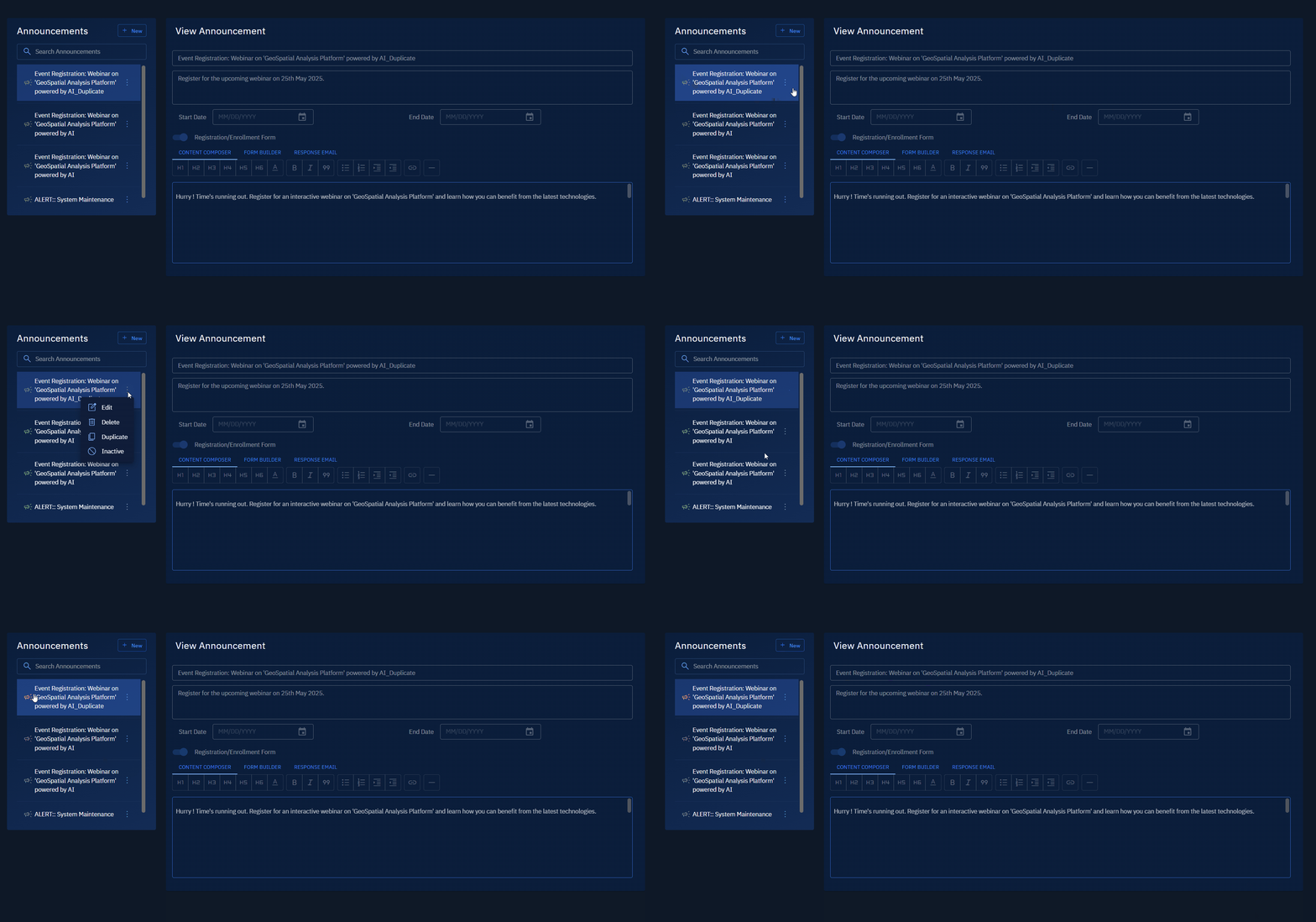
In this section, you will learn how to search, edit, delete, and make a copy of announcement. In addition, you will also get to know how to activate or deactivate an announcement.
Searching an announcement
This functionality enables you to search an announcement.
To search an announcement, do the following:
-
Login to the platform.
-
Click the System Panel module and then click the Announcements.
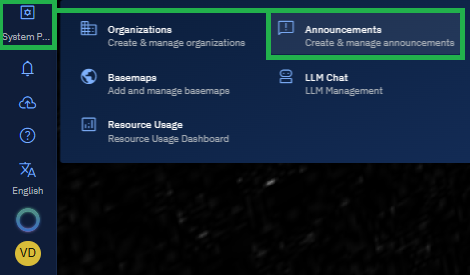
The Announcements sub-module page is displayed.
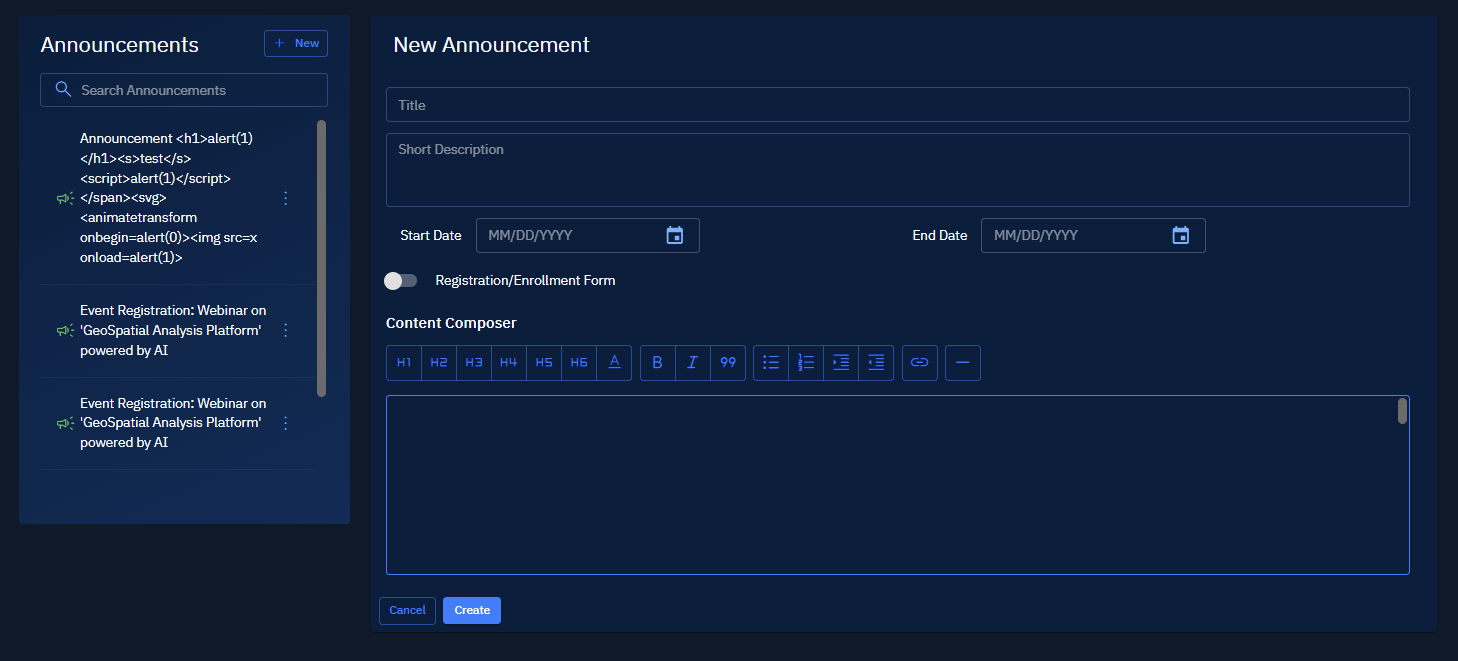
-
On the New Announcement page, type the name of the announcement in the Search box.
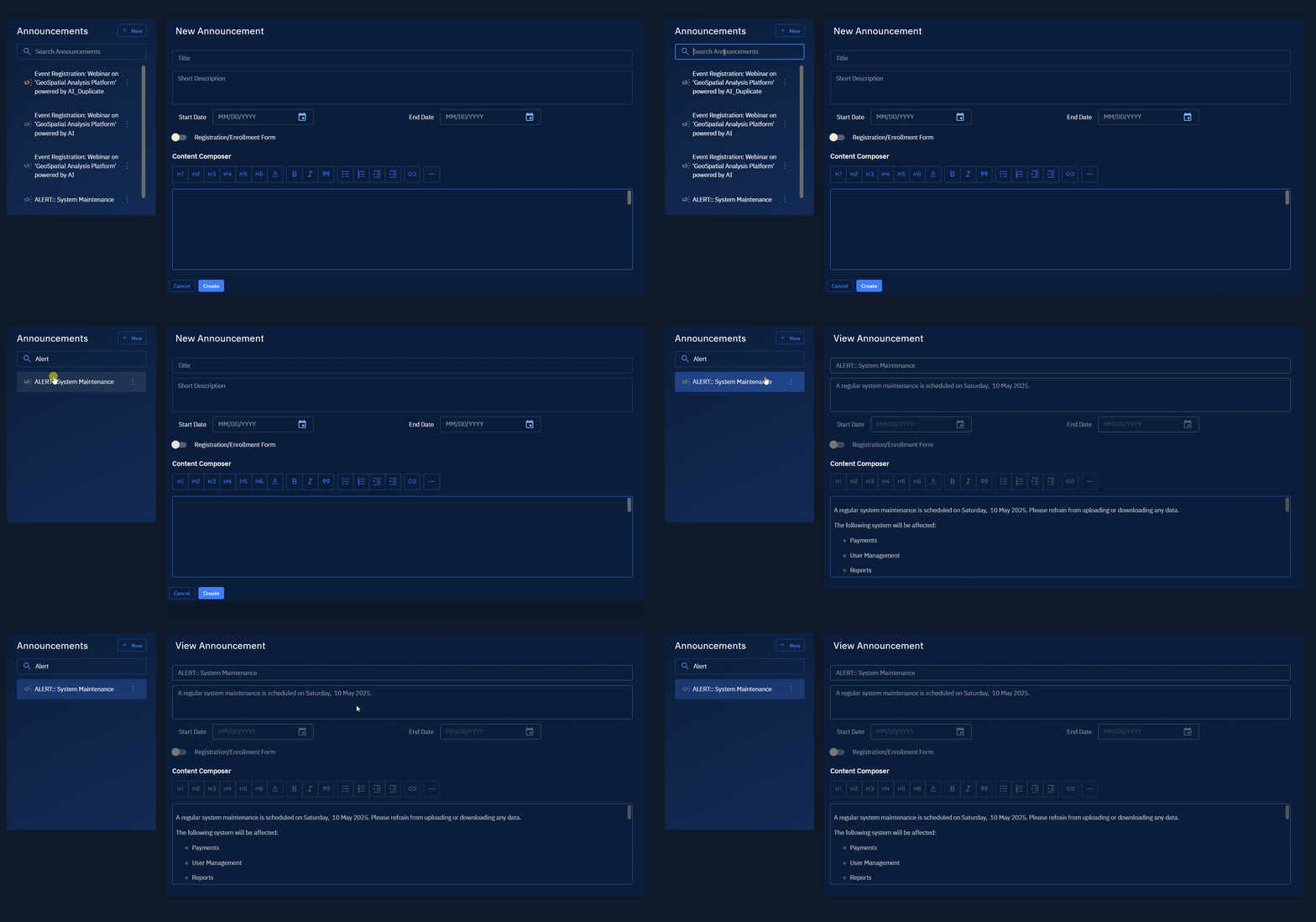
The platform will automatically filter and display matching announcement as you type in the search bar.
Editing an announcement
This functionality enables you to edit a specific an announcement.
To edit an announcement, do the following:
-
Navigate to the System Panel module and click the Announcements section.
The New Announcement page is displayed.
-
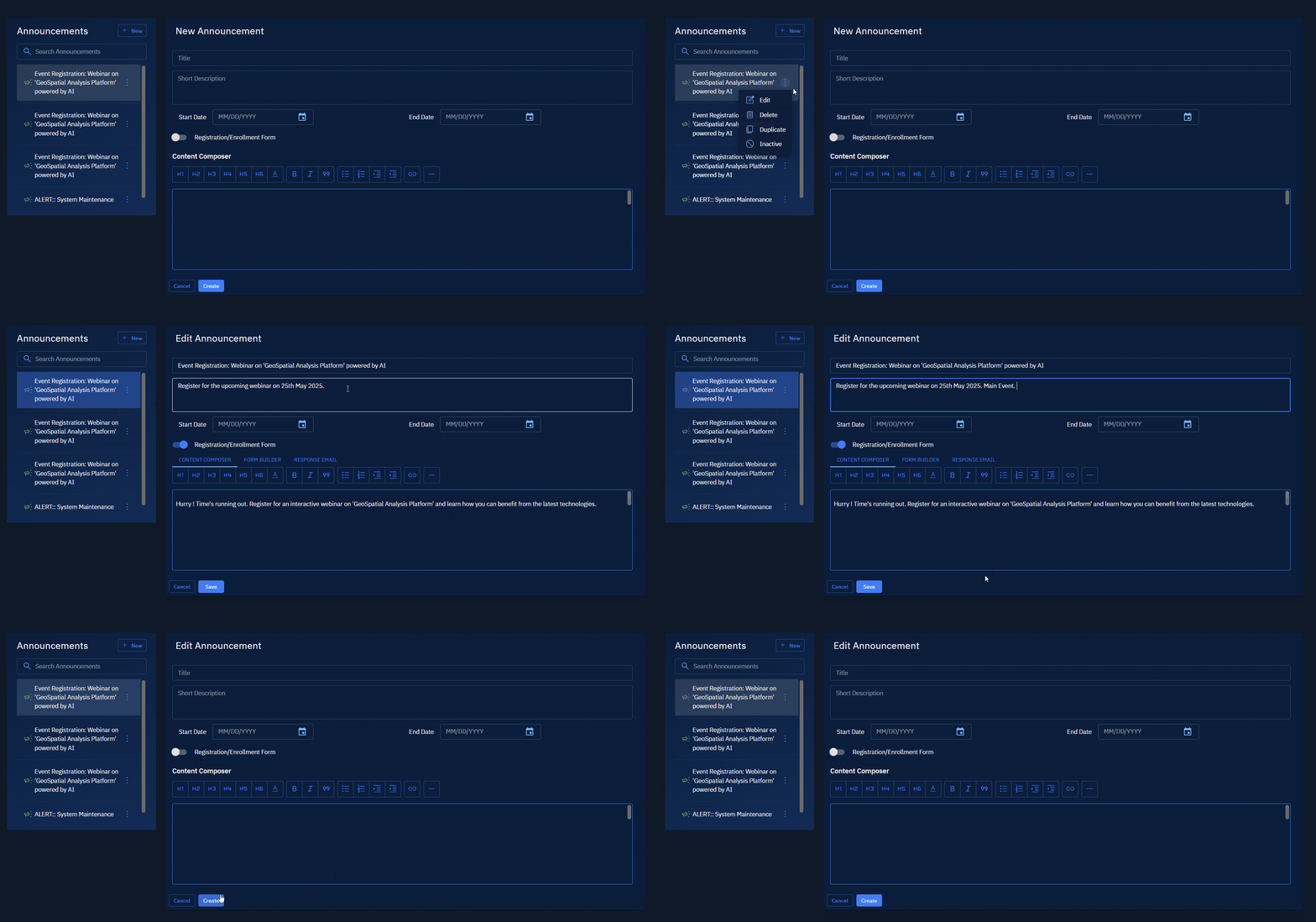
On the New Announcement page, locate the announcement that you want to edit, click the vertical three-dots menu, and then select the Edit option.
The Edit Announcement page is displayed.
- On the Edit Announcement page, make the appropriate changes, and then click the Save button.
The changes to the announcement are successfully saved.
Deleting an announcement
This functionality enables you to delete an announcement.
To delete an announcement, do the following:
-
Navigate to the System Panel module and click the Announcements section.
The New Announcement page is displayed.
-
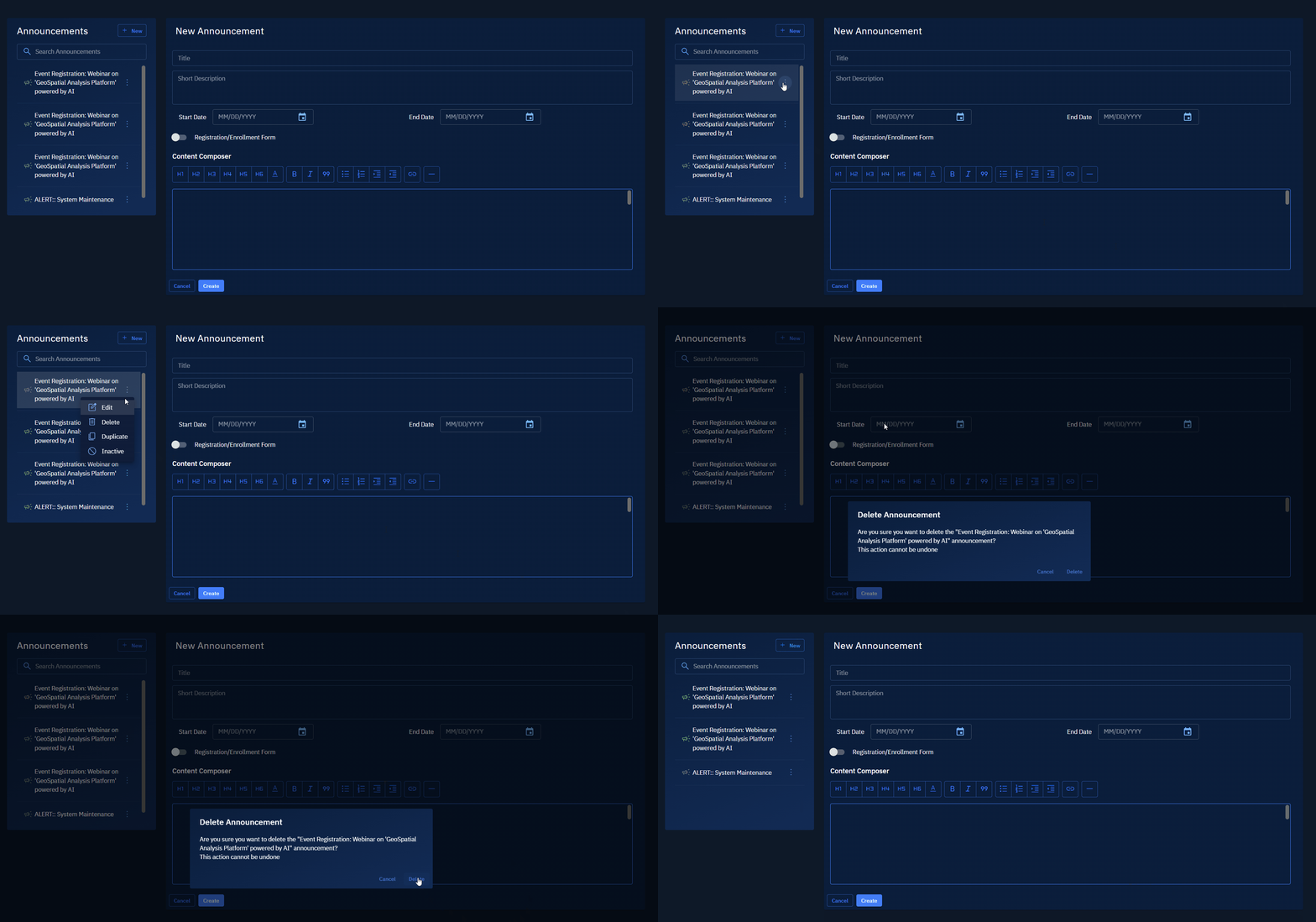
On the New Announcements page, locate the announcement that you want to delete, click the vertical three-dots menu, and then select the Delete option.
The announcement is instantly deleted.
Duplicating an announcement
This functionality enables you to make a copy of an announcement.
To duplicate an announcement, do the following:
-
Navigate to the System Panel module and click the Announcements section.
The New Announcement page is displayed.
-
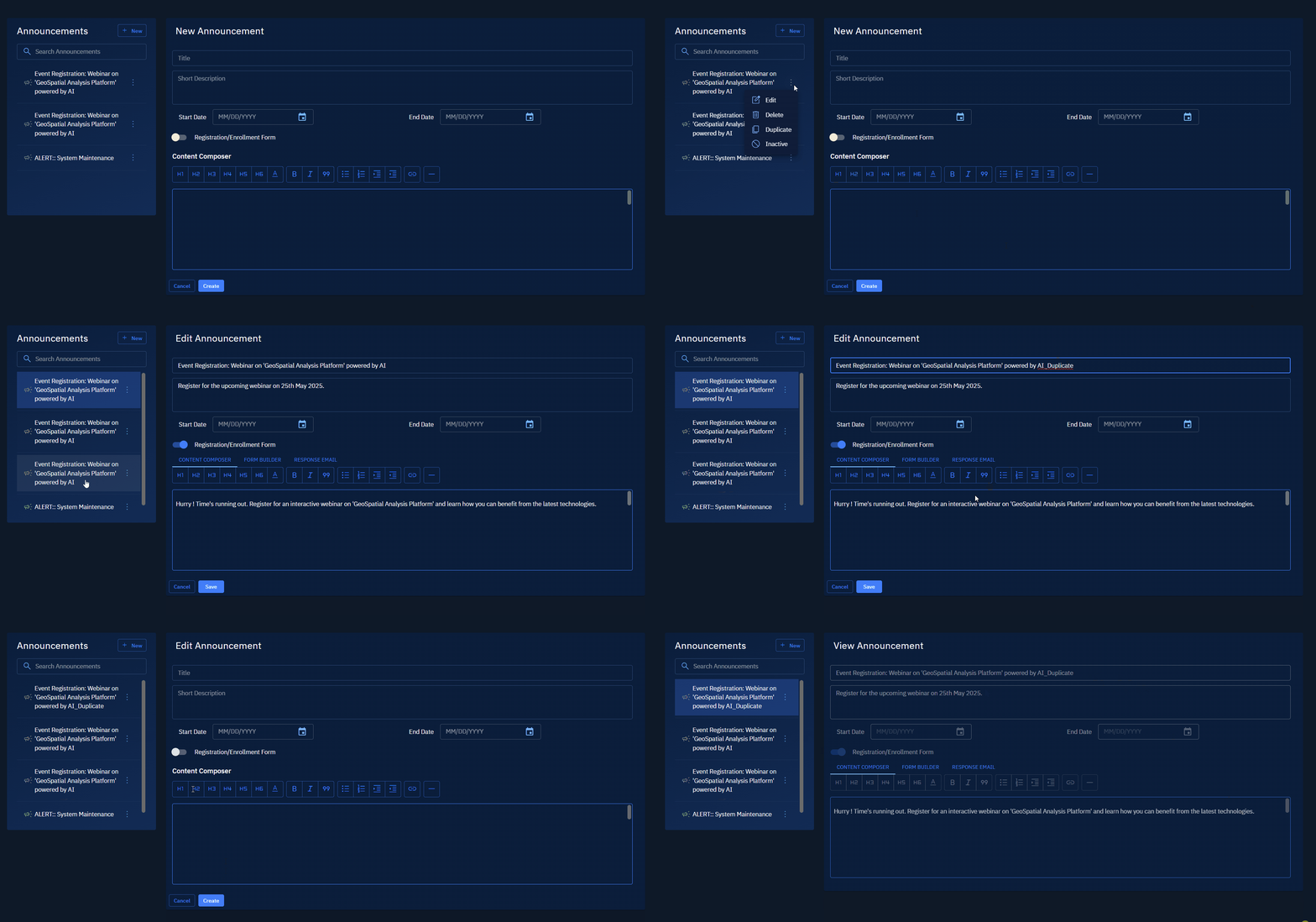
On the New Announcement page, locate the announcement that you want to duplicate, click the vertical three-dots menu, and then select the Duplicate option.
The announcement is instantly duplicated.
Activating or Deactivating an announcement
This functionality enables you to activate or deactivate an announcement.
If you want to remove an announcement before the end date, you can click simply the deactivate button for the respective announcement.
Since the system automatically deactivates the announcement after the specified end date in the display range, if needed, you can activate the announcement with this functionality.
To activate or deactivate an announcement, do the following:
-
Navigate to the System Panel module and click the Announcements section.
The New Announcement page is displayed.
-
On the New Announcement page, locate the announcement that you want to activate or deactivate, click the vertical three-dots menu, and then select the Activate or Deactivate option.
The announcement is instantly activated or deactivated.